 ClashWise
Wise in Navisworks
Work with Wise inside Navisworks.
Find the outstanding work, assign it and keep the review moving. Wise works with your published clash data, docked beside the model in Navisworks.
14-day free trial · No card required

For Navisworks Manage 2024, 2025, 2026, 2027. Included with Pro and Business.
From a question to a useful next step.
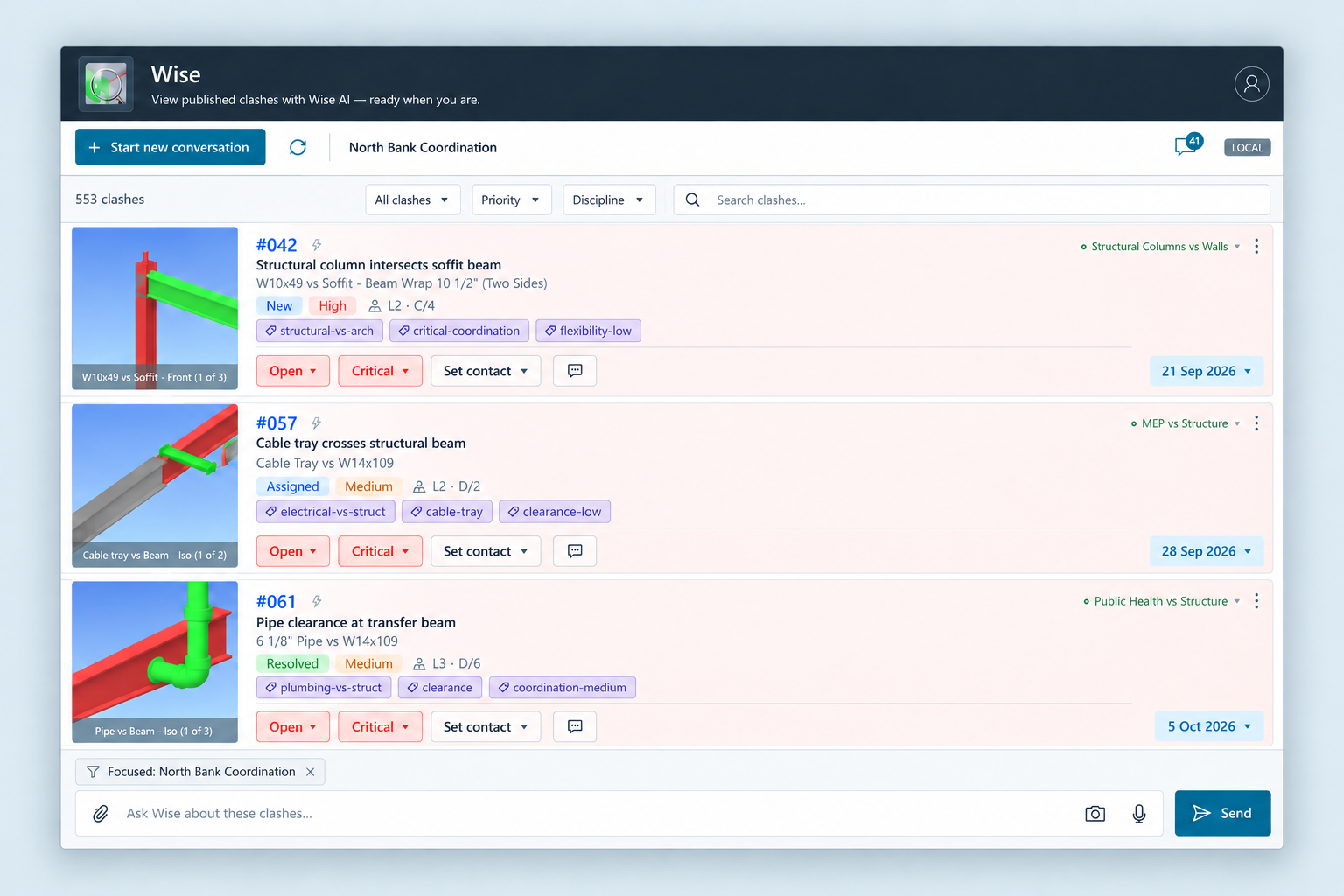
Wise can query and change your published coordination data. The cards and operation history show what happened, and your team sees the same updated records on the web.
Find the clashes that need attention
Combine status, priority, level, grid, contact, tags, keywords and dates in one request. Browse live cards with thumbnails, element details, comments and due dates; use Show next for larger results.
Update a whole worklist
Set status, priority, contact and due date across matching clashes. Edit directly on the cards, undo the last chat change, and protect reviewed values from later analysis with analysis locks.
Start from your model selection
Ask which published clashes involve the elements you selected. Wise can read selection properties and model context, search for similar elements, select, isolate, focus or reset the view, and save a native Navisworks search set.
Build and refine the matrix
Review class and discipline mappings for each source, configure the matrix in chat, then generate it and run analysis. Edit rule tolerances, defaults, contacts and notes. Reassign a matched rule on a clash card; its default fields follow, with a link to the web matrix editor.
Organise the next review
Save a result list as a named filtered set, available to your team on the web. Group clashes by level, test, discipline, grid or another captured property, ready to work through together.
Ask for the file you need
Export the whole set, visible cards, selected clashes or clash numbers to Excel, CSV, BCF 2.1 or PDF reports. Choose where to save the file. Wise can also open Publish, Update, Sync, Group Clashes and Sets and Clashes from the conversation.
Ask with the location in view.
Wise clash cards carry available building, level and room context alongside the published clash details. Spatial assignments can finish after publication, and approximate locations remain identified. Use the room evidence with the model view when deciding what needs attention.
Explore review by roomKeep the meeting record as you coordinate.
Start and end a coordination session from the pane. During an active session, status, priority, contact and due-date edits are recorded automatically. Dwelling on a clash in Clash Detective marks it reviewed.
Explore coordination sessionsDecisions, owners and minutes
Save decisions and action items with owners. Wise drafts the minutes from recorded changes and saved notes, ready for review in chat and on the web, with PDF export.
Start using Wise with a published clash set.
Clash detection stays in Navisworks Clash Detective. Wise uses the results you publish and the live model context you share; it does not edit model geometry.
Publish your clash tests
Install the plug-in, sign in and publish the clash results from your Navisworks model.
Open Chat from the ClashWiseAI ribbon
Click Chat or press Alt+5. Focus on one clash set or keep the conversation general. Enter sends your message; Ctrl+Enter adds a line.
Review the result and sync back
Changes appear in the web workspace. Use the plug-in’s explicit sync tools to bring coordination changes back into Navisworks. Reopen saved conversations with refreshed cards whenever you need them.
Included with Pro and Business.
Pro includes 300 Wise actions per editor seat per month; Business includes 1000. Actions are pooled across your team. Direct card edits, refreshes and browsing do not use actions.
Review the rule beside the clash.
Use the matched-rule control to inspect or change the rule assignment. Check overrides and stale-rule indicators, restore current rule values when appropriate, or open the matrix in ClashWise for a wider review.
Questions about Wise.
Visit the help centreWhich Navisworks versions does Wise support?
The ClashWise plug-in and Wise pane support Autodesk Navisworks Manage 2024, 2025, 2026, 2027.
Does Wise actually make changes?
Yes. It can apply statuses, priorities, contacts, due dates, matched rules, filtered sets and matrices to published data. Changes remain visible and editable. Bringing those coordination fields back to Navisworks uses the plug-in’s explicit sync step.
What data can Wise see?
Your published clash sets, plus context available through the plug-in: selection properties, active clash, model files, units, categories and test state. You can turn selection context off. Unpublished clash results are not available as a published set. Wise does not modify model geometry.
Can Wise run my coordination sessions?
Yes. Start or end the session in chat, record decisions and action items with owners, and review the minutes from recorded session changes. The same session record is available on the web, with PDF export.
What counts as a Wise action?
Each successful chat request that does AI work counts as one action, regardless of the number of steps. Failed requests, direct card edits, refreshes and browsing do not count. The pane warns you as your allowance runs low. Local AI naming is separate.
Do I need the web app open while I chat?
No. Wise is docked inside Navisworks. It requires an internet connection and sign-in, and changes appear in the web workspace for your team.
Which plan includes Wise?
Pro, Business and the active 14-day trial include Wise. Starter provides the local Navisworks toolkit and does not include Wise chat. No credit card is required to start the trial.
Bring your next question into Navisworks.
Publish a clash set and try Wise on the coordination work in front of you.