ClashWise

ClashWise tools for Navisworks

Build the checks. Publish the work. Keep Navisworks in sync.

Map the model data, create repeatable search sets and tests, organise and name the results, then publish a worklist the team can coordinate. When decisions are made, bring the supported fields back into Navisworks.

Navisworks Manage 2024, 2025, 2026, 2027 · 14-day trial · No card required

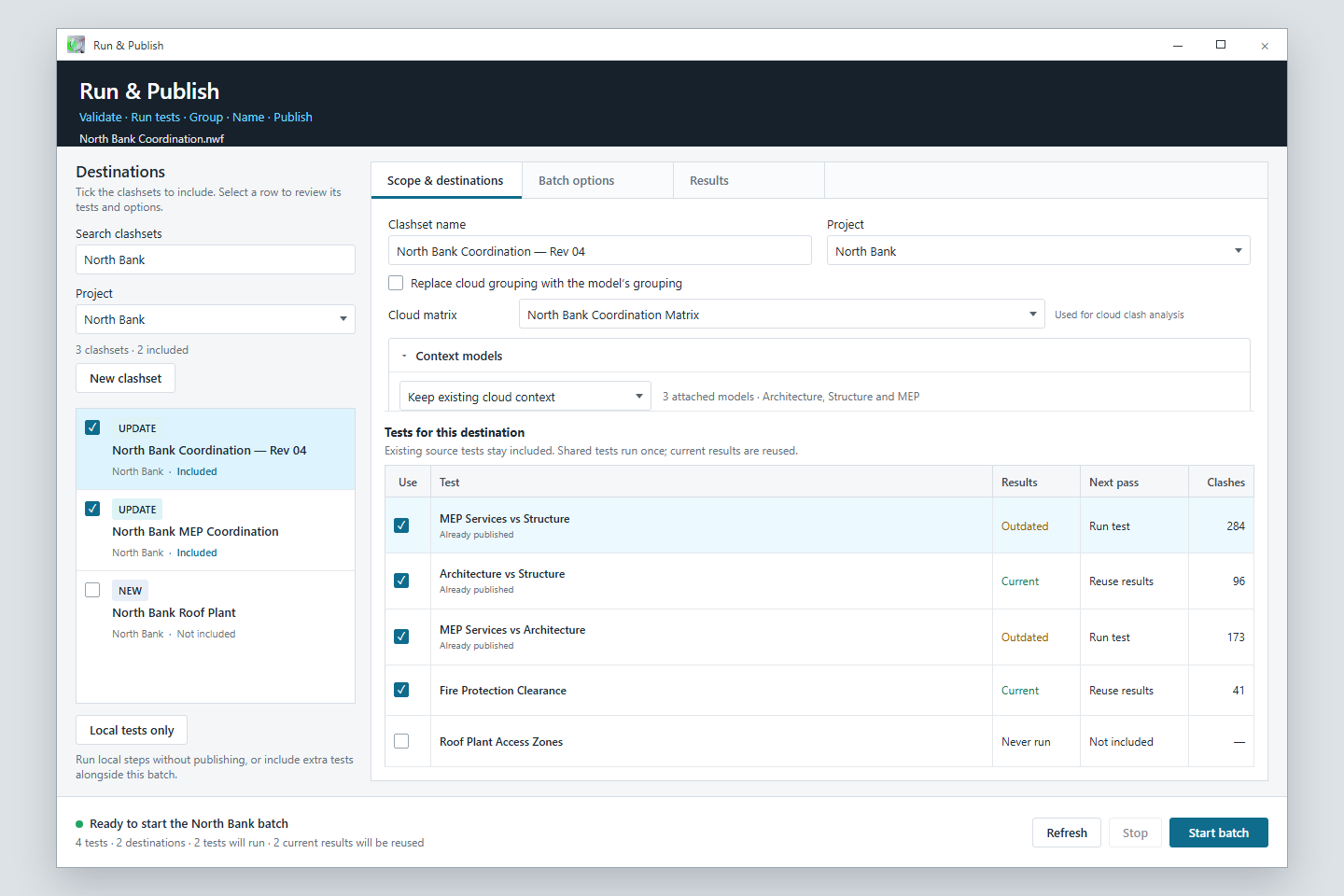
Illustrated Run and Publish window showing destinations and clash tests for a coordination batch
Illustrated product view using sample project data. Interface details may vary by version.

Navisworks runs the geometric clash tests. ClashWise helps prepare, organise, publish and coordinate the results. Design changes stay in the authoring tools.

01

Prepare the model

Give every tool reliable model information.

Start by showing ClashWise where useful identity, location and discipline data lives. Then turn the federation and a reviewed matrix into a repeatable coordination setup.

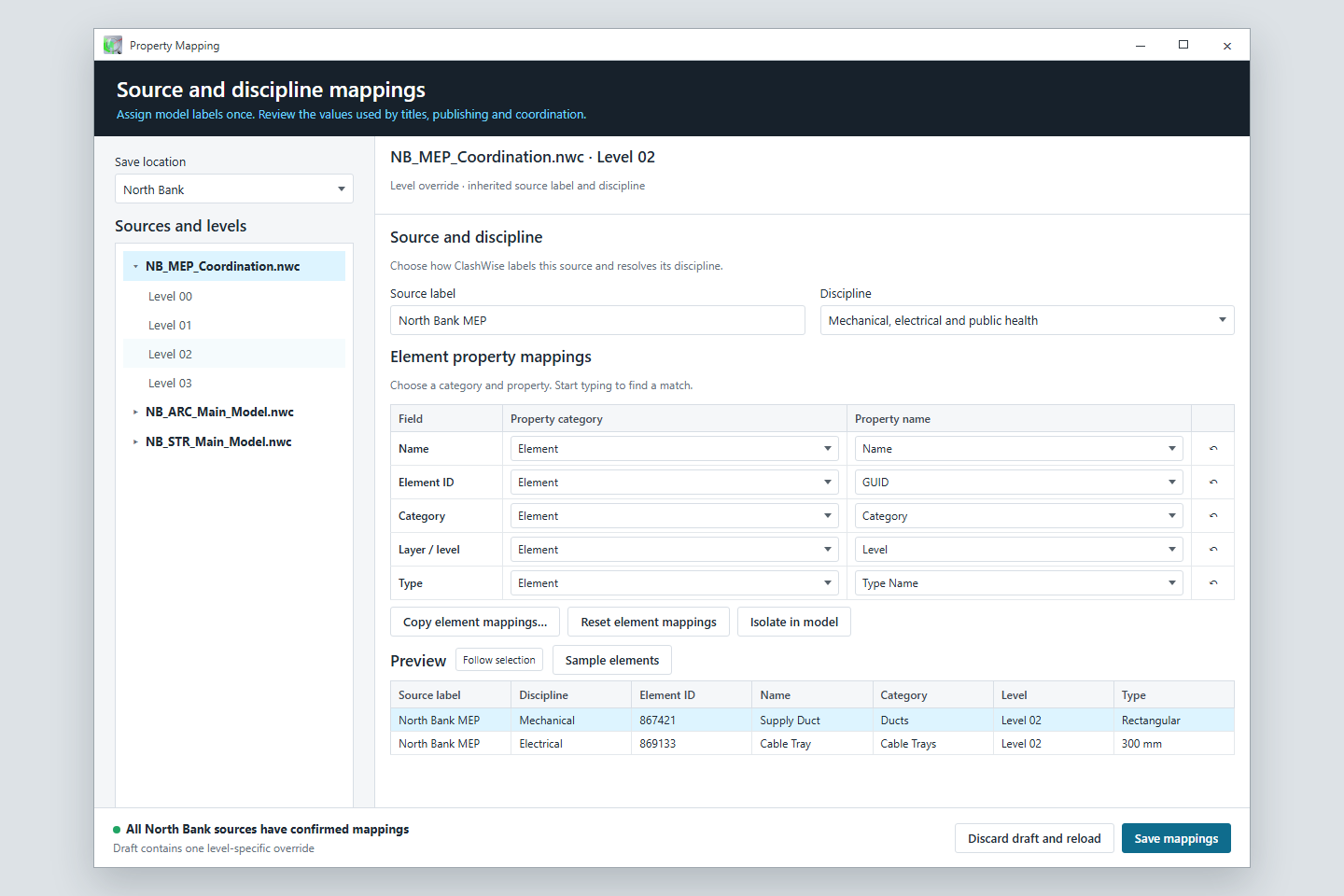
Illustrated Property Mapping window with source and discipline mappings
Illustrated Property Mapping view · North Bank sample

Make the source data dependable.

Identify the properties that represent an element’s name, ID, category, level, type, source and discipline. Reliable mappings improve titles, filters, locations and the coordination setup without changing the source model.

Explore Property Mapping
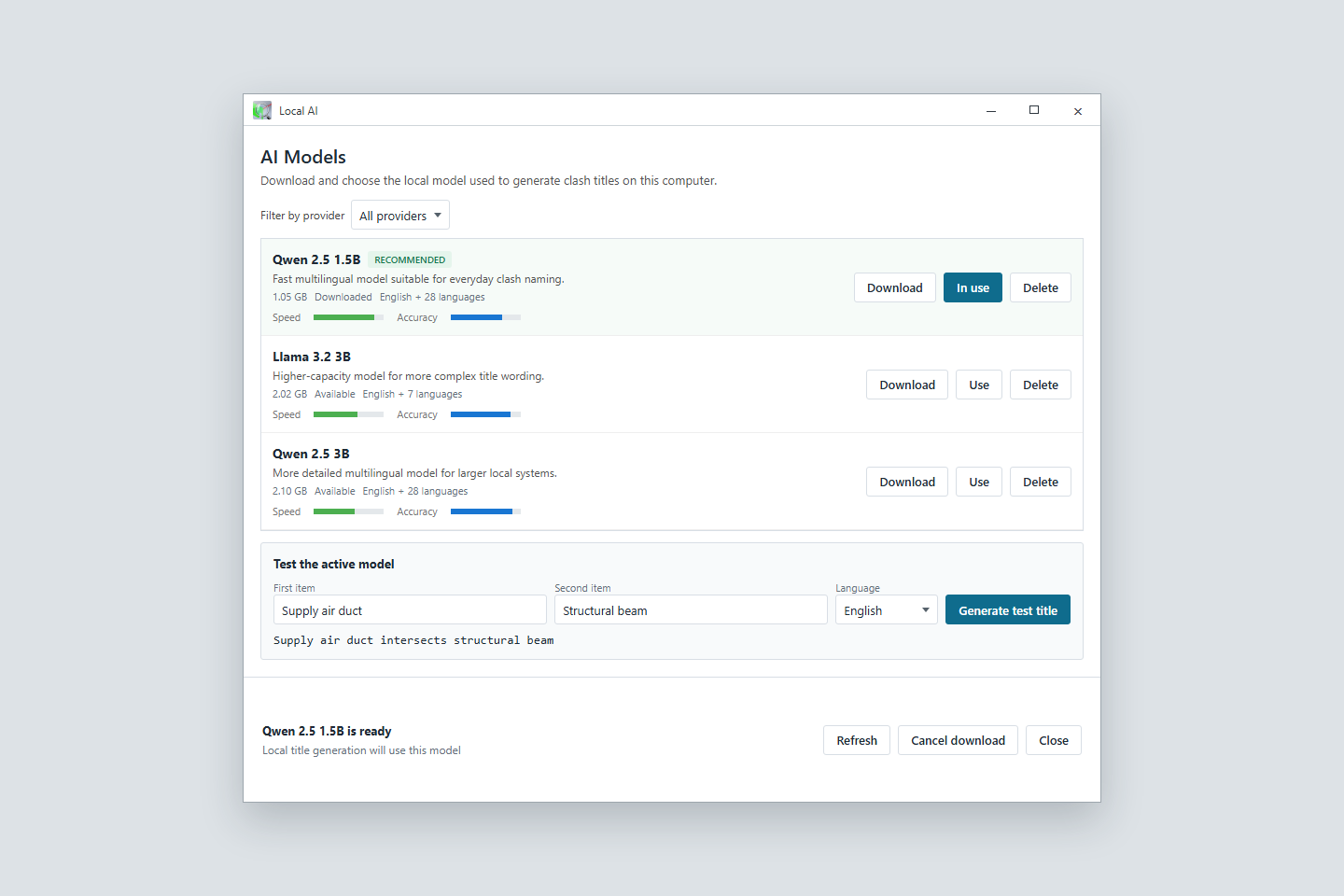
Illustrated Local AI window showing downloaded on-device naming models
Illustrated Local AI view · North Bank sample

Set up naming on your own machine.

Download, select and test the local model before a large title run. Once set up, local title generation can run on the CPU without a per-title charge. Publishing, shared coordination and Wise remain cloud-connected.

See local title generation
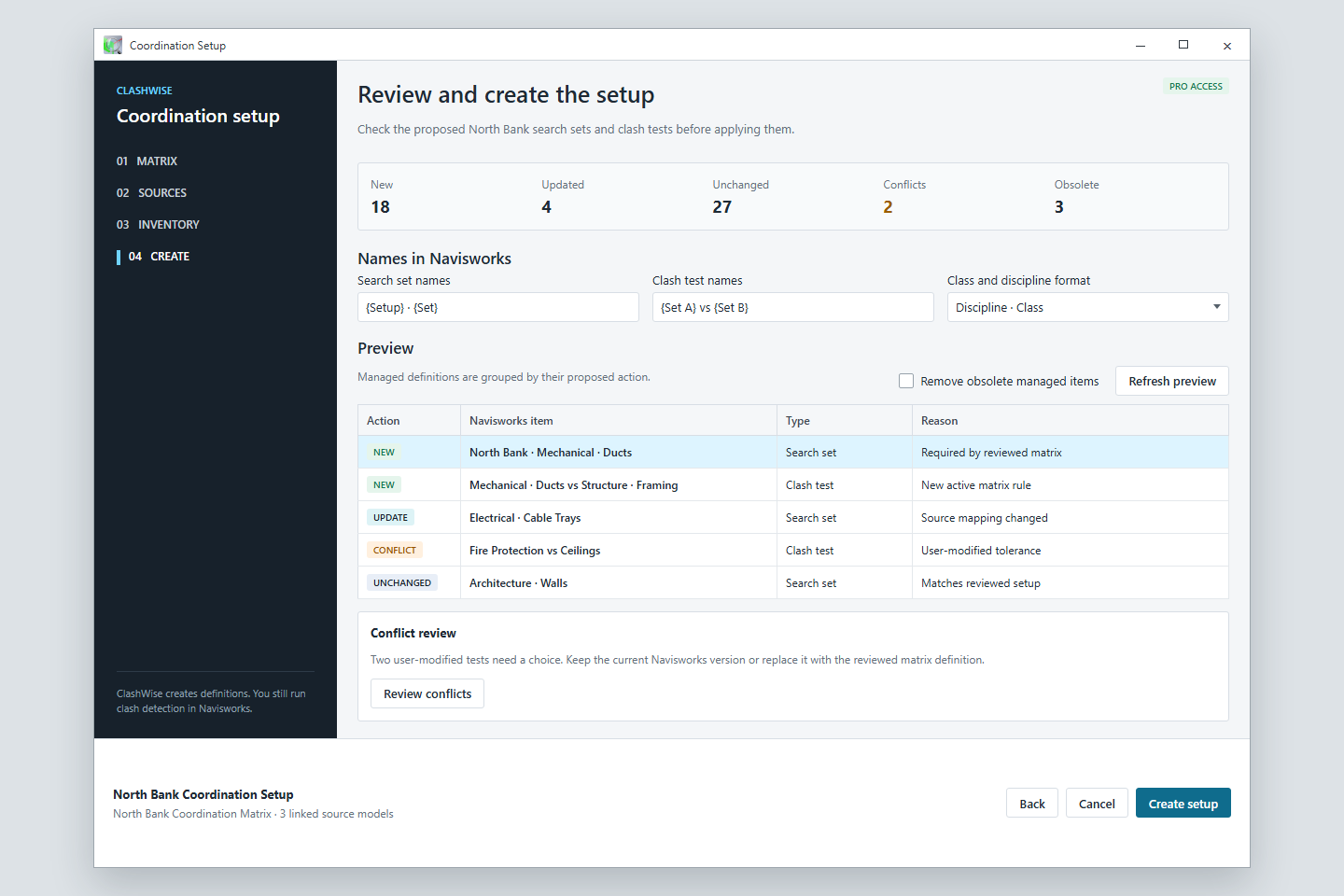
Illustrated Coordination Setup preview showing new, updated and conflicting definitions
Illustrated Coordination Setup view · North Bank sample

Preview the checking structure before creating it.

Scan the model inventory, connect a matrix and review which search sets and clash tests will be new, updated, unchanged, conflicting or obsolete. Coordination Setup requires active or trial Pro or Business organisation access.

Explore the clash matrix

02

Build and run the checks

Keep model selections and clash tests connected.

Create reusable property-based selections, turn them into checks and run the tests that are ready. Complex tests remain available in Clash Detective when they cannot be simplified safely.

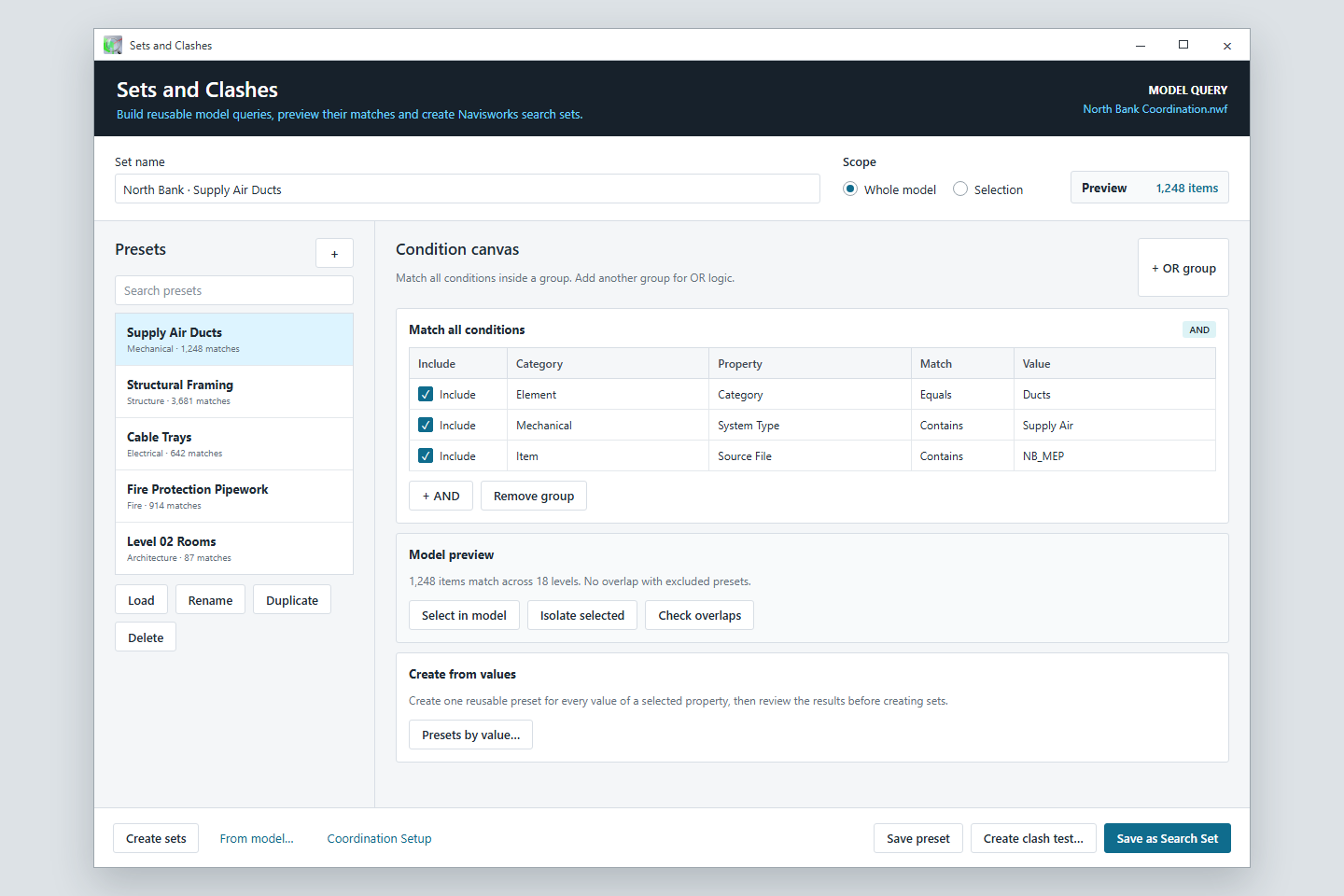
Illustrated Sets and Clashes window with property conditions and matching elements
Illustrated Sets and Clashes view · North Bank sample

Stop rebuilding the same model selections.

Combine property conditions, preview matching objects, check overlaps and save useful definitions as presets. Property-only sets stay dynamic; computed and hybrid location results save as static selection sets.

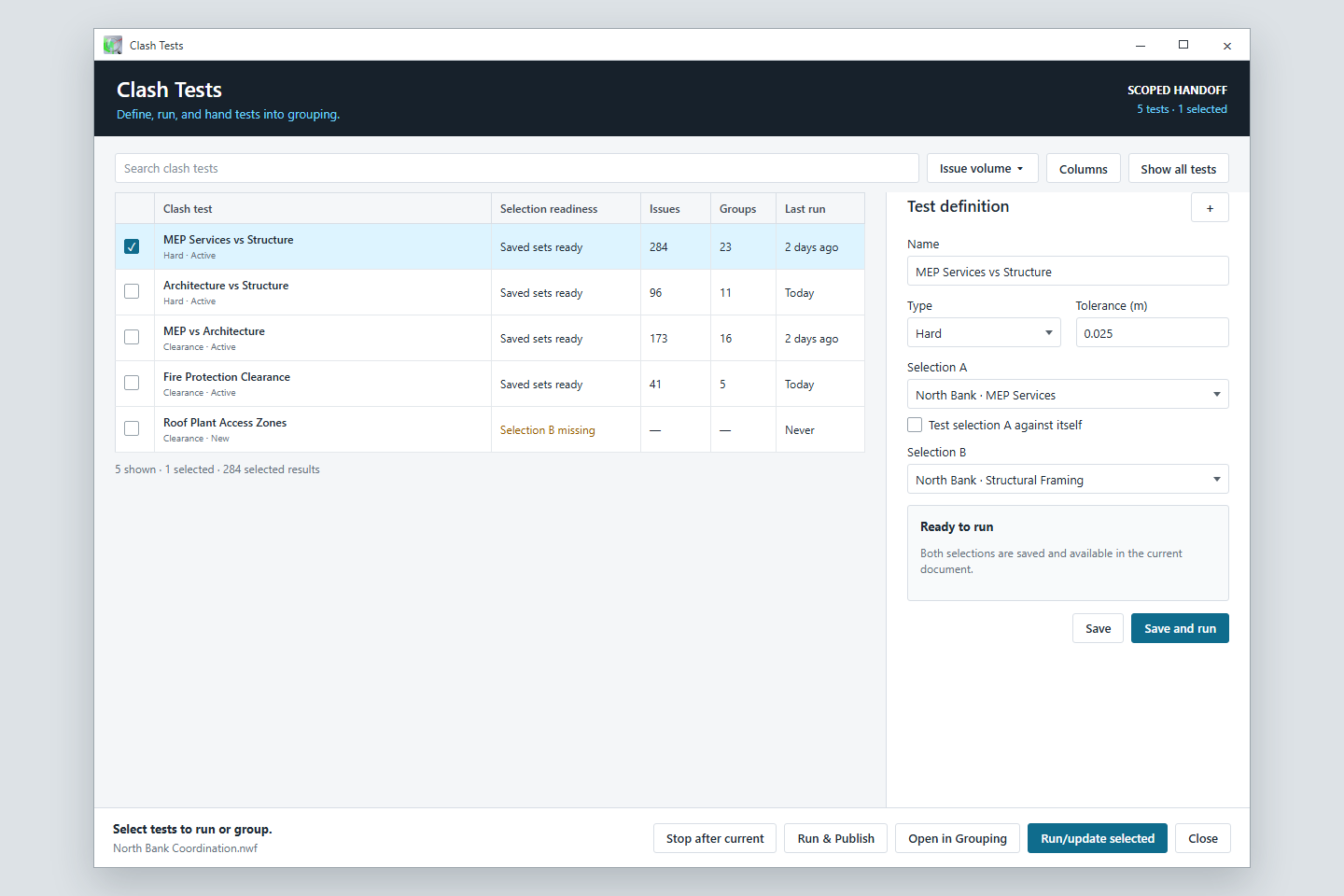
Illustrated Clash Tests worklist with selection readiness, issue volume and test settings
Illustrated Clash Tests view · North Bank sample

See scope and readiness before the run.

Create or edit supported names, saved-set selections, test types and tolerances. Run or update several tests in sequence, then hand selected results directly into Group Clashes.

03

Make the results usable

Turn a flat result list into work people can discuss.

Group related results around the properties your project uses, then replace generic names with descriptions that make sense in a meeting, report or worklist.

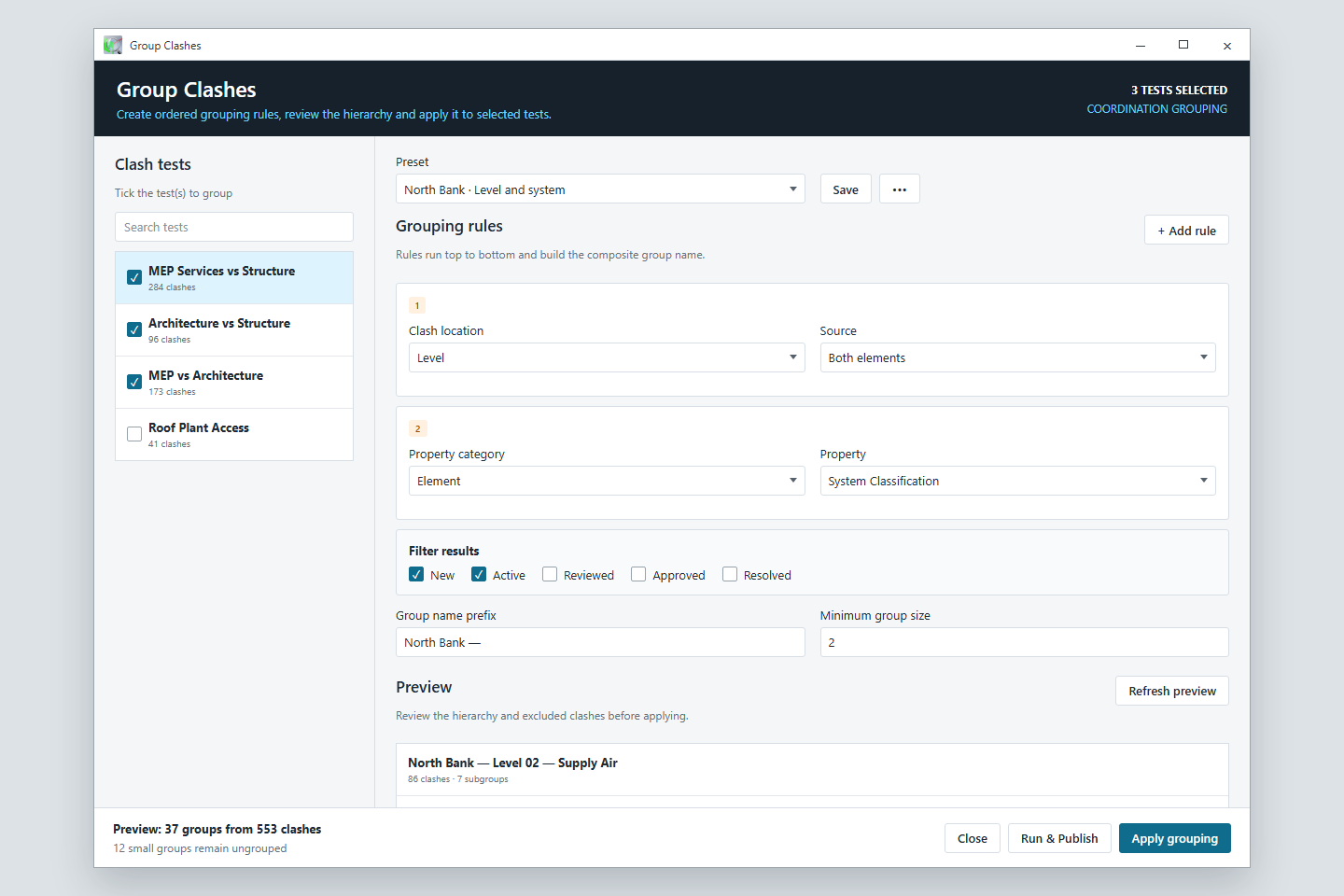
Illustrated Group Clashes window with ordered grouping rules and hierarchy preview
Illustrated Group Clashes view · North Bank sample

Reveal patterns in a large result set.

Order rules for level, grid, system, category or another model property. Preview the hierarchy and reuse saved presets. Grouping organises the results; it does not decide whether a clash matters.

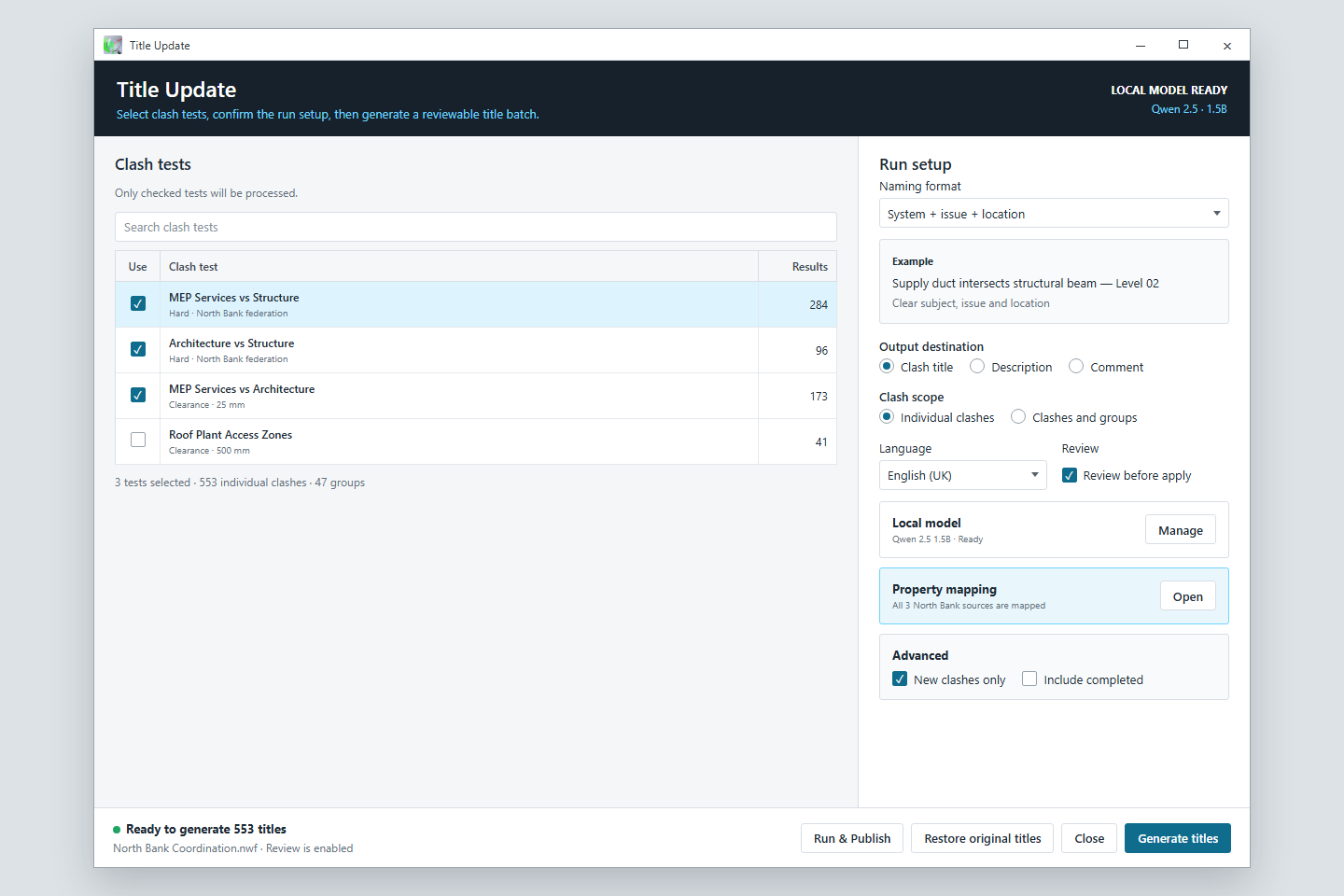
Illustrated Title Update window with test selection, naming settings and review controls
Illustrated Title Update view · North Bank sample

Replace “Clash 47” with something useful.

Choose the tests, naming format, language and output field. Generate titles for individual results, groups or both, then edit, reject or regenerate proposals before applying them.

Compare title formats

04

Publish with confidence

Choose the route that matches the work in front of you.

Use the guided batch when several stages or destinations belong together. Keep the focused publish and context tools for smaller jobs.

Illustrated Run and Publish window showing several destinations and reusable test results
Illustrated Run and Publish view · North Bank sample

One controlled route through the whole batch.

Validate readiness, run or reuse tests, apply optional grouping and local titles, then create or update the chosen destinations. You start every run and keep control of scope, options and destinations.

The optional local-title stage uses local inference without cloud fallback. Local naming and cloud publishing check their plan access separately.

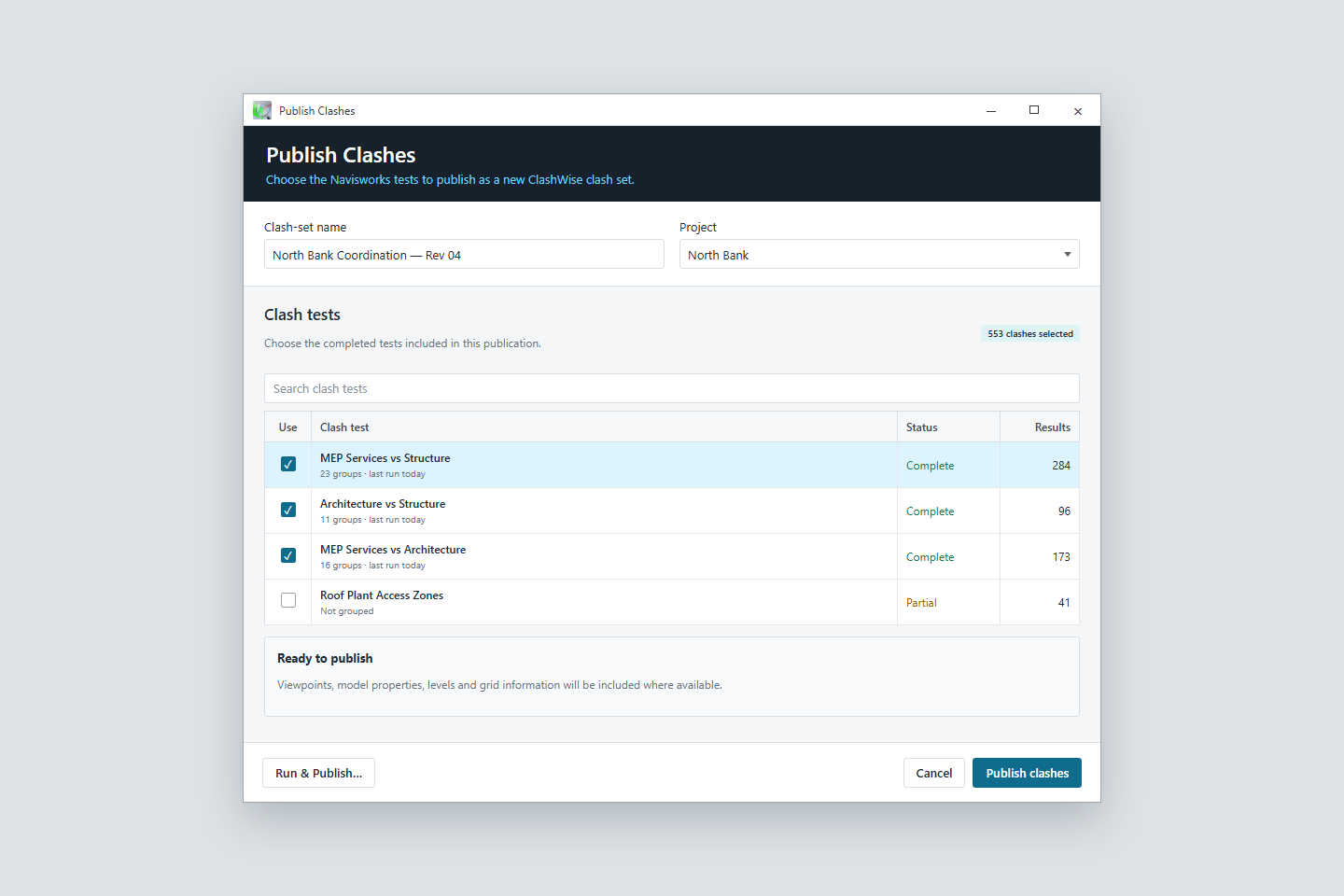
Illustrated Publish Clashes window with completed tests selected for a new clash set
Illustrated Publish Clashes view · North Bank sample

Create a focused worklist from completed tests.

Select the finished clash tests, name the destination and publish their results with the supporting viewpoints, model properties and available location context. Use Update Clashes when that destination already exists.

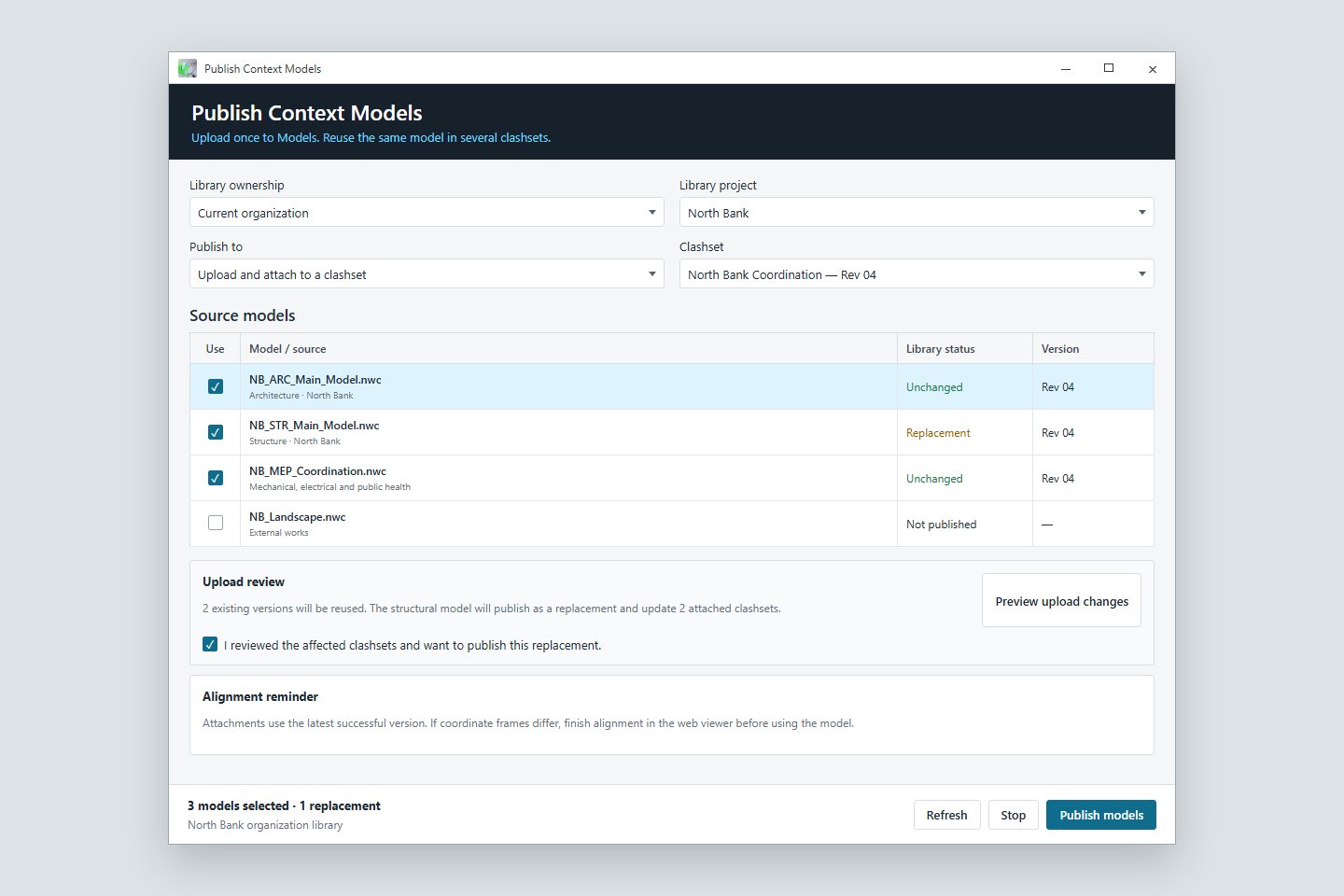
Illustrated Publish Context Models window showing reusable model versions and replacements
Illustrated Publish Context Models view · North Bank sample

Give each issue the surroundings it needs.

Publish source models to a personal or organisation library, reuse unchanged versions and review replacements before attaching them. Context models support visual understanding; they do not replace the Navisworks federation.

See model and room review

05

Coordinate and close the loop

Keep the model and the coordination record connected.

Work through the published set beside the model, carry revised results into the same record and choose which agreed fields return to Navisworks.

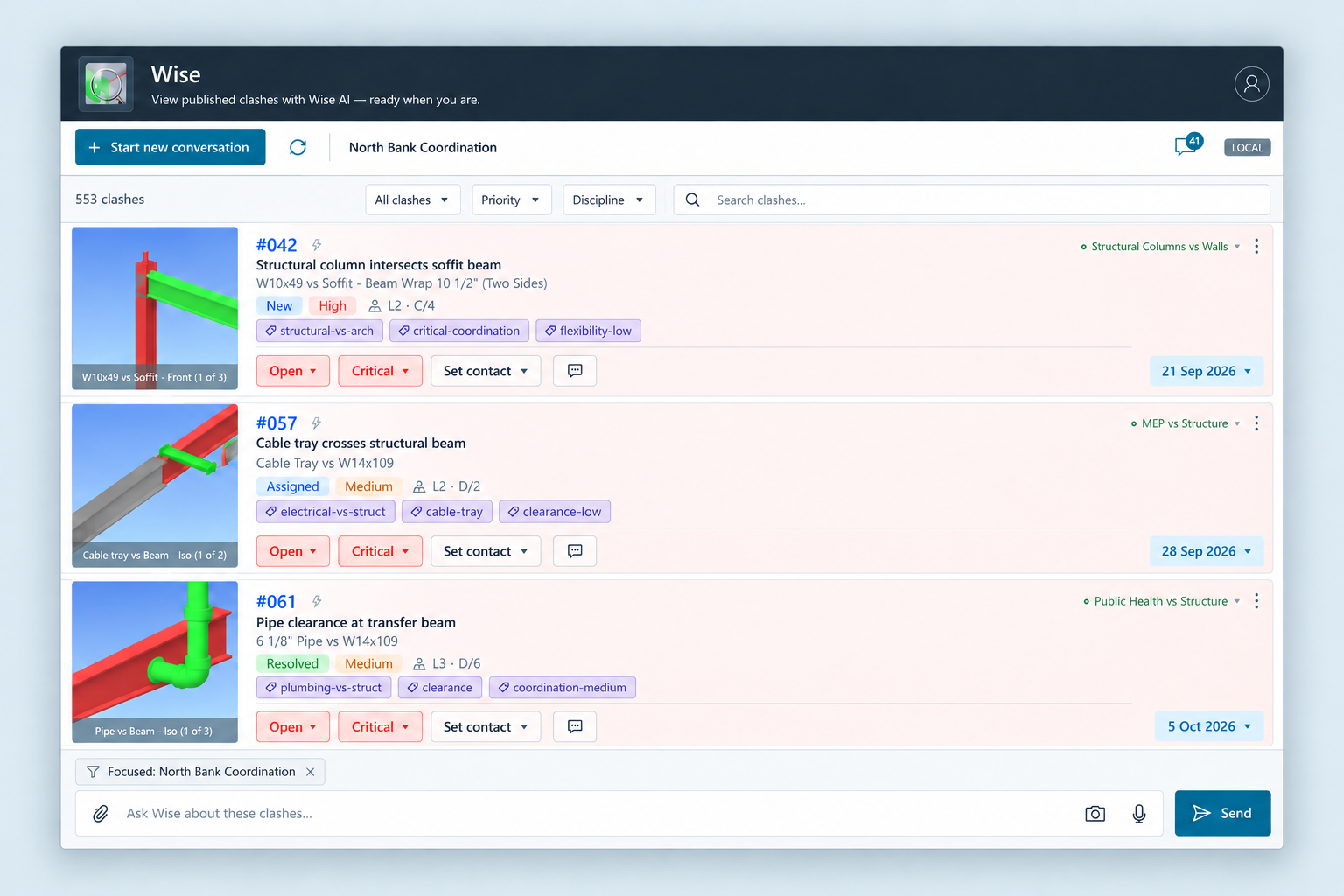
Illustrated Clash Workspace showing a published worklist beside the Navisworks model and Wise composer
Illustrated product view using sample project data. Interface details may vary by version.

Review published clashes without leaving the model.

Browse and filter the worklist, inspect details, show issues in the model, edit coordination fields and ask Wise for supported actions. Clash Workspace works with published data; Clash Detective still authors and runs native tests.

See Wise in Navisworks
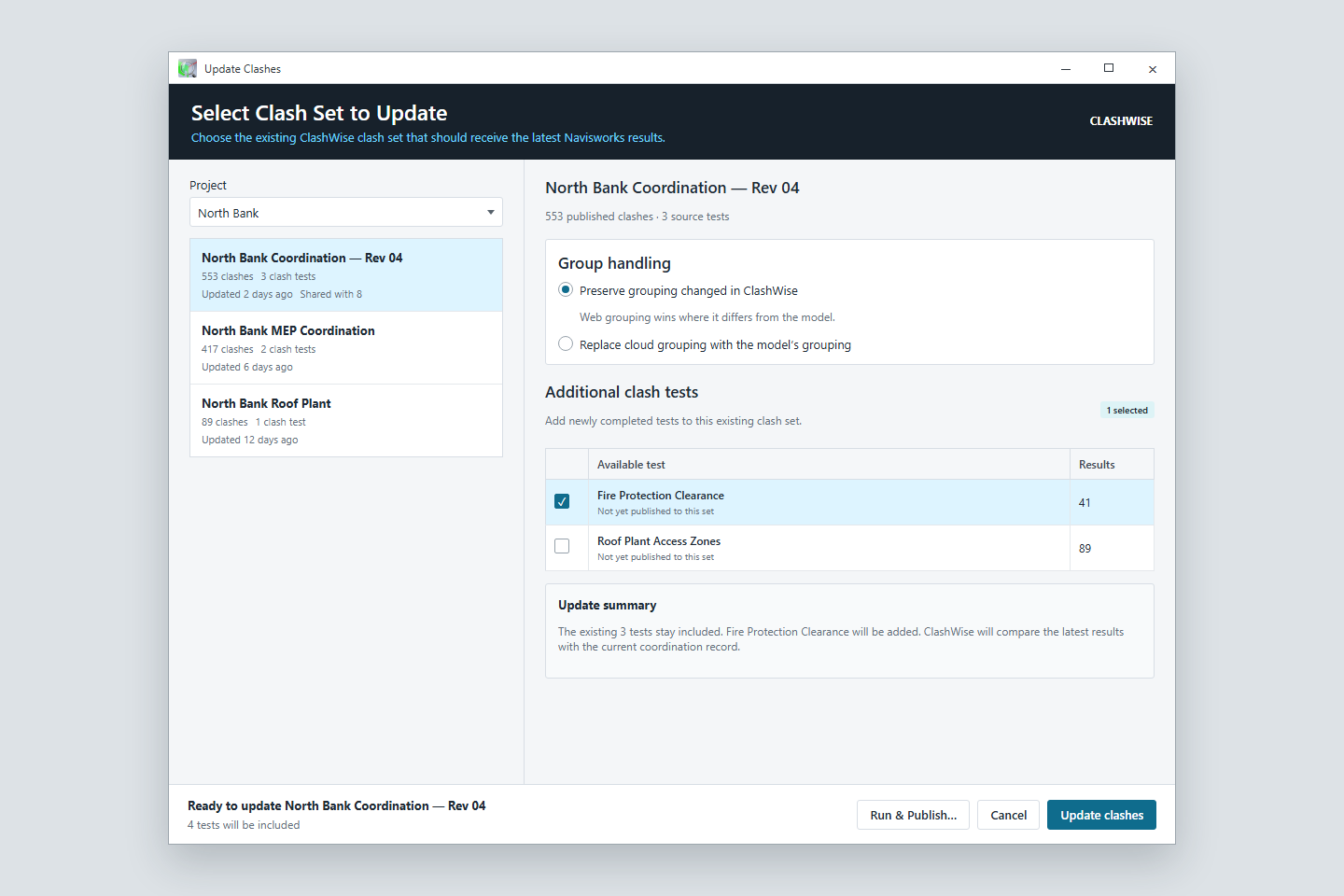
Illustrated Update Clashes window selecting an existing cloud clash set and revised results
Illustrated Update Clashes view · North Bank sample

Carry the next revision into the same workstream.

Send the latest Navisworks results to an existing cloud clash set. Existing issues keep their identity where they can be matched, resolved results can be recognised and new results join the same coordination record.

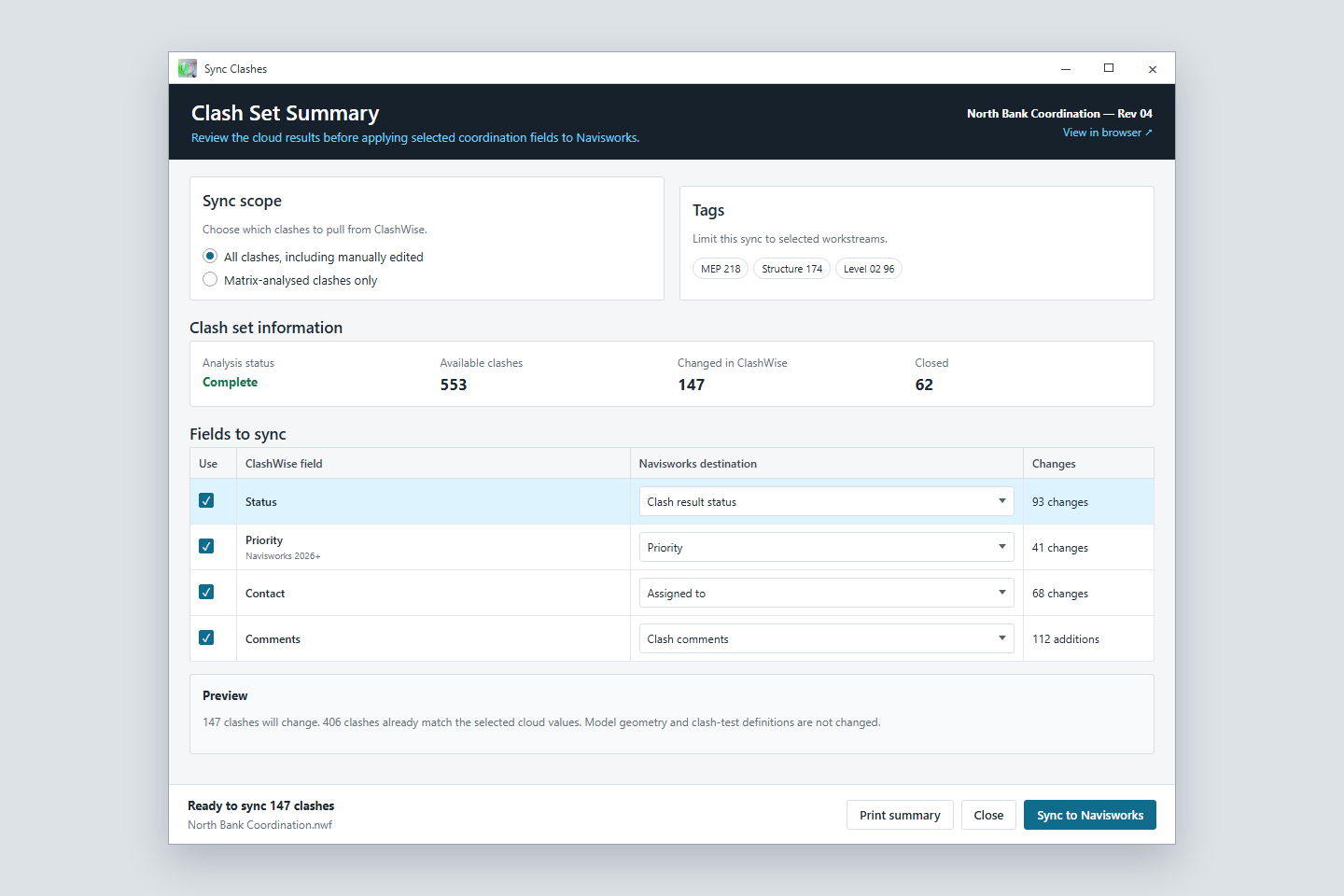
Illustrated Sync Clashes summary with status, priority, contact and comment mappings
Illustrated Sync Clashes view · North Bank sample

Choose exactly what returns to Navisworks.

Review the cloud changes, select the clashes and map supported status, priority, contact and comment fields. Sync does not change model geometry or rerun clash tests. Priority sync requires Navisworks 2026 or later.

Publish Clashes tool icon

Publish creates

Send completed Navisworks results to a new ClashWise destination.

Update Clashes tool icon

Update refreshes

Send the latest results to an existing coordination record.

Sync Clashes tool icon

Sync returns

Bring selected coordination fields from ClashWise back into Navisworks.

One ribbon, several ways to work

Use the focused tool or run the connected workflow.

Not every project needs every tool. Start with local naming and grouping, prepare a complete setup, or use Run and Publish for a regular coordination issue. The focused commands remain available when you need one controlled action.

Choose the access that fits the job.

Starter includes local naming, Sets and Clashes and grouping. Pro and Business add the shared cloud workflow, Coordination Setup, publishing, analysis, Wise and sync.

Compare plans and pricing

Practical questions

Before the first run.

Start with a familiar federation and a small test scope you can verify.

Does ClashWise replace Clash Detective?

No. Navisworks Manage 2024, 2025, 2026, 2027 runs the geometric clash tests. ClashWise prepares the checking structure and helps organise, publish and coordinate the results.

Does Run and Publish run unattended?

No. You start each run in the plug-in, choose its scope and destinations, and review its report. Saved choices reduce repeat setup; resuming after a supported failure also requires your action.

Which tools work locally?

Local AI can generate titles on your computer after setup. Publishing, shared coordination, Wise and sync are cloud-connected workflows. Property Mapping is still required so local naming receives useful element data.

Do the tools change model geometry?

No. Preparation tools create or update Navisworks sets, tests, groups and clash text. Sync applies selected coordination fields to clash records. Geometry changes remain in the authoring tools.

Bring your next coordination run into one workflow.

Install the plug-in, map a familiar model and choose the first tool your project needs.